
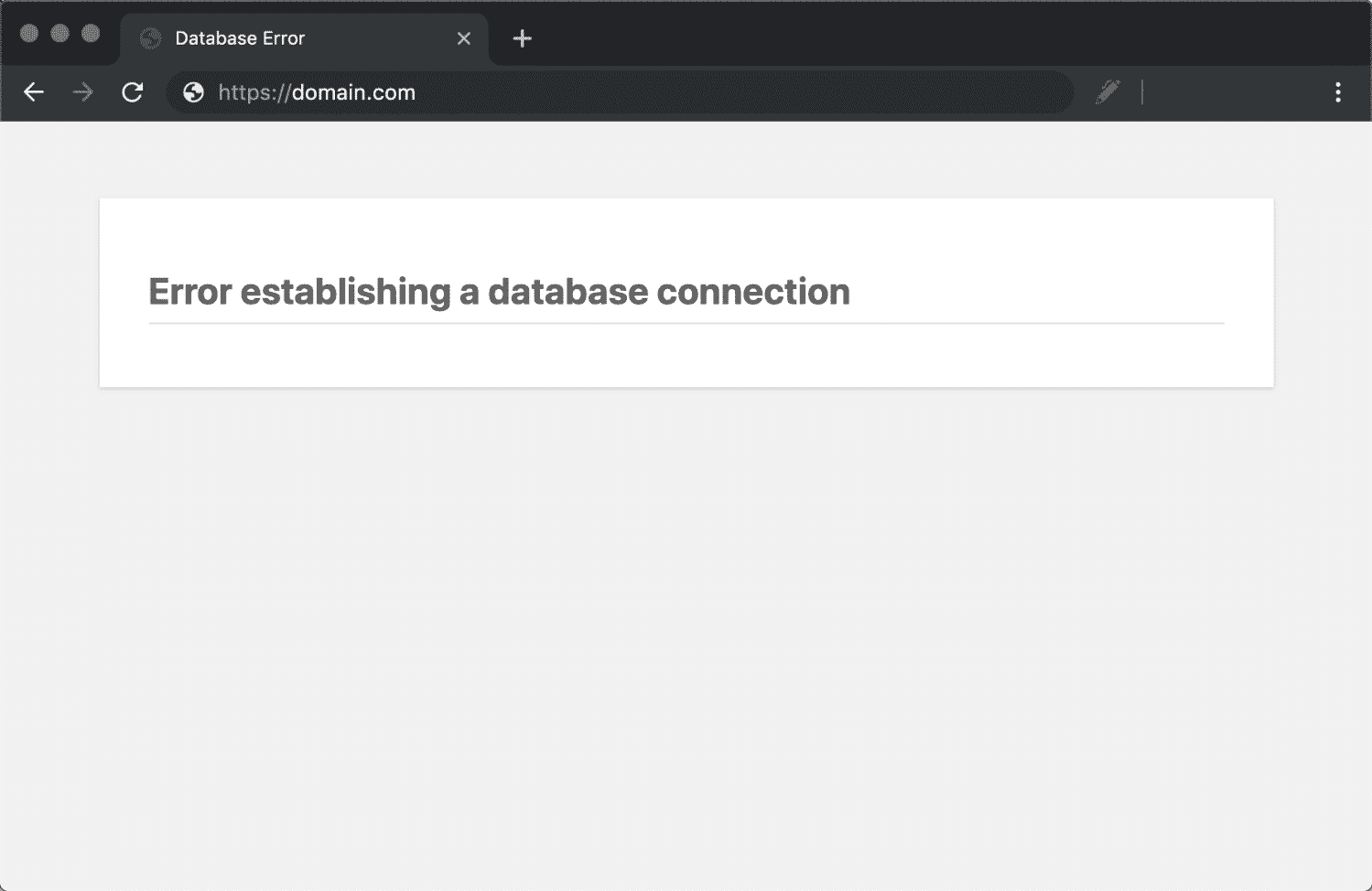
WordPress “Error Establishing Database Connection” – Fix Now
Last Updated: April 2026 | Skill Level: Intermediate | Affects: All WordPress sites
Is your WordPress site showing “Error establishing a database connection”? This critical error means WordPress can’t communicate with your MySQL database, rendering your entire site inaccessible. While it looks catastrophic, it’s often a simple credential mismatch. Here’s how to restore the connection quickly.
Table of Contents
Understanding the Database Connection Error
This error occurs when WordPress (PHP) cannot connect to the MySQL database that stores all your content. Common triggers:
- Incorrect database credentials in wp-config.php (password changed, username typo)
- Corrupted database tables (usually after failed updates)
- Database server downtime (hosting provider maintenance)
- Exceeded database quota (shared hosting limits reached)
- Malware injection corrupting connection strings
Fix 1: Verify wp-config.php Credentials (Recommended)
Most cases are simply wrong login details in your configuration file.
Step-by-Step:
- Access cPanel > File Manager > public_html (or connect via FTP)
- Locate wp-config.php and edit (right-click > Edit)
- Verify these 4 lines match your hosting account:
define('DB_NAME', 'your_database_name'); define('DB_USER', 'your_username'); define('DB_PASSWORD', 'your_password'); define('DB_HOST', 'localhost'); - Find correct credentials:
cPanel: MySQL Databases section (copy exact names)
Note: DB_HOST is usually ‘localhost’ but some hosts use ‘127.0.0.1’ or specific server names - Update wp-config.php with exact credentials (case-sensitive)
- Save and reload site
If credentials are correct but still failing: Try repairing database via cPanel > phpMyAdmin > Select DB > Check All > Repair tables.
Fix 2: Contact Hosting Support (Slower)
If credentials are correct and repair fails, the database server may be down or corrupted beyond repair.
Process:
- Submit ticket: “Database connection error after [recent change]”
- Request database restart or restore from backup
Timeline: Database restores take 2-24 hours depending on backup size. You’ll lose any content added since the last backup (usually daily backups on good hosts).
Prevention
- Never edit wp-config.php in WordPress editor—use cPanel File Manager (has syntax backup)
- Enable automatic database optimization via plugin like WP-Optimize
- Regular backups via UpdraftPlus or hosting control panel
Bottom Line
Database connection errors look terminal but are usually just wrong passwords. While support can restore backups, checking wp-config.php credentials (Fix 1) resolves 80% of cases immediately. Keep your database credentials documented safely outside WordPress.