
[SOLVED] WordPress Internal Server Error 500 – Quick Fix Guide
Last Updated: December 2025 | Skill Level: Beginner | Affects: All WordPress versions
Is your WordPress site showing “500 Internal Server Error” instead of your content? This white screen of death prevents visitors from accessing your site and blocks you from the admin dashboard. Don’t panic—your content is safe. Here’s how to fix it in minutes without losing data.
Understanding WordPress Error 500
The 500 Internal Server Error is a generic server message indicating something went wrong, but the server couldn’t specify what. In WordPress, this typically stems from:
- Corrupted .htaccess file (most common)
- Plugin conflicts or incompatible updates
- PHP memory limit exceeded
- File permission issues
- Syntax errors in wp-config.php
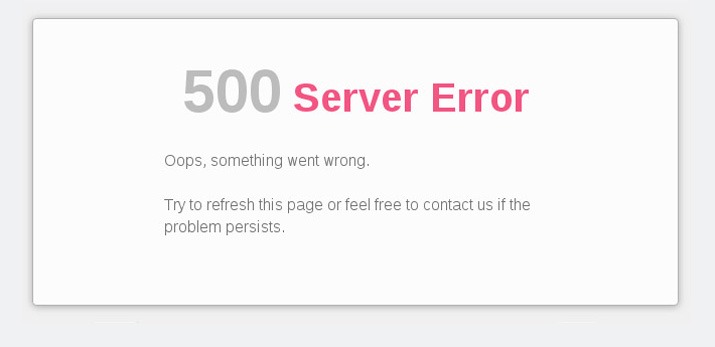
Critical: This error locks both visitors AND administrators out. You need FTP or cPanel access to fix it without the WordPress dashboard.
Fix 1: Reset .htaccess File (Recommended)
The fastest solution is regenerating your .htaccess file, which controls URL rewriting and permalinks.
Step-by-Step:
- Access your server via cPanel or FTP:
cPanel: File Manager > public_html
FTP: Connect with FileZilla or similar client - Locate .htaccess in your root WordPress folder (it’s hidden—enable “Show hidden files” in cPanel or FTP settings)
- Rename it to .htaccess_old (right-click > Rename). This deactivates it without deleting.
- Test your site—it should load immediately (URLs may look ugly with ?p=123, but site works)
- Regenerate clean .htaccess:
Go to WordPress Admin > Settings > Permalinks > Click “Save Changes” (this creates new .htaccess automatically)
Result: Site restores immediately. If caused by plugin conflict, proceed to disable plugins via FTP (rename /plugins/ folder temporarily).
Fix 2: Submit Hosting Support Ticket (Slower)
If you’re uncomfortable accessing server files or the above didn’t resolve it.
Process:
- Submit ticket: “500 Internal Server Error on WordPress site”
- Provide domain name and last action before error (plugin update?)
- Request server error logs review
Timeline: Shared hosting support averages 4-24 hours for 500 errors. They’ll likely perform the same .htaccess reset described in Fix 1, or identify if it’s a server-side PHP issue requiring their intervention.
Prevention Tips
- Never edit .htaccess directly without backup—use WordPress permalinks settings instead
- Update plugins one at a time and test site between each
- Use staging environment for major updates
- Monitor error logs via cPanel > Error Logs section
FAQ
Will I lose content fixing Error 500?
Why did this happen after updating a plugin?
Bottom Line
Error 500 looks scary but is usually just a corrupted configuration file. While waiting for support works, renaming .htaccess via cPanel (Fix 1) restores your site in 2 minutes. Keep FTP credentials handy—it’s the master key to fixing WordPress when the admin panel is locked.
Did this fix your 500 error? Share what caused it in the comments below.